Upsell and Cross-sell

Create add-on sales on product and cart pages. Showing the right product to someone who has already decided to buy is the cheapest growth there is.

What do upsell and cross-sell do?

You suggest a second product to a customer who has already decided to buy — at the right moment. The panel counts how often it was shown and how often it was accepted, so you never have to guess which suggestion works.

The offer

Put a second product next to the first

Suggest the scarf to someone viewing the coat, or a care kit to someone viewing shoes. The offer appears at its own price, and if the customer accepts, it goes into the cart at that price.

Placement

Three different moments to offer

While they browse the product, while they complete the cart at checkout, or right after the order is placed. You choose where each offer appears when you set the campaign up.

Up-sell

Sometimes the right suggestion is the upgrade

Instead of adding a product alongside, suggest the upgraded model of what they are viewing. Same engine, same screen — there is no second tool to learn.

Measurement

How often shown, how often accepted

Impressions and acceptances are counted separately for every campaign. Every accepted offer is an extra product in the cart — so you see which pairing works and which is shown for nothing, and switch the weak one off.

Pricing

The offer price holds all the way to the order line

The discounted price shown to the customer carries into the cart, the checkout and the order record. A different amount never appears at the till.

Matching

You decide which offer appears on which product

Match by product or by category, then turn the campaign on, off, or run it only during a set period.

Basket size is standing still

Raising visitor numbers is expensive; selling one more item to the same customer is nearly free.

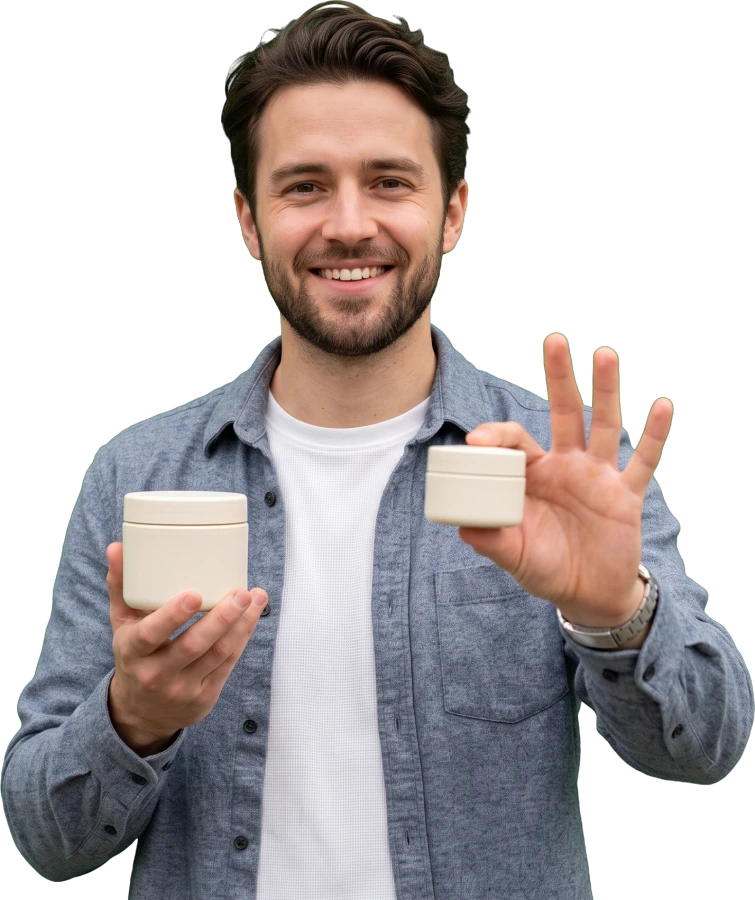
A shop owner offering a second product alongside the first

Shown and accepted The panel counts both

The offer price holds What was accepted is what the basket charges

  • Complementary products stay hidden

    Customers leave without knowing the case, spare part or matching item exists.

  • Recommendations updated by hand

    As the catalogue grows, nobody can track what belongs next to what.

  • Irrelevant suggestions break trust

    A random product only clutters the page.

How it works at

Pick the recommendation yourself, or use the pairing the panel derives from past orders.

  1. 1- Choose per product

    Set exactly what appears next to which product from the product card.

  2. 2- Write a category rule

    Instead of per-product picks, define “recommend this category next to that one”.

  3. 3- Use frequently bought together

    The panel extracts products bought together in past orders and suggests them.

  4. 4- Choose where it shows

    Display on the product detail page, in the cart or at checkout.

What you gain

More revenue from the same visitor, with no extra ad spend.

Average basket grows

Add-to-cart rates rise when the complementary product is visible.

Stock balances out

Show slow movers beside fast sellers to even things out.

Customers find the right item

No need to leave the site to look for a compatible spare or accessory.

Set up once

Write the rule once; new products join it automatically.

Related features

Campaign and Coupon Tools

Combine add-on sales with a campaign to grow the basket further.

Explore

Loyalty Points

Offer points on the second item to encourage adding it.

Explore

Mail, SMS and WhatsApp Automation

Remind customers of the complementary product after purchase.

Explore

Grow your basket size.

Open your free store and set up your first frequently-bought-together rule today.

WhatsApp